Skip to content

How to block keywords on YouTube

YouTube has no word filter for viewers. The closest built-in option, "Not interested", works on one video at a time. To hide every video with a certain word in its title, like a spoiler, a topic or a name, you need a blocker.
Add to ChromeComing to the Chrome Web StoreTry the demo
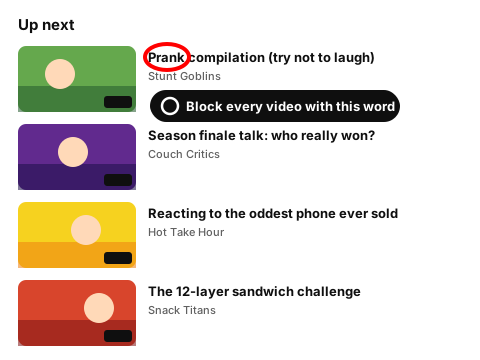
Drawing of an Up next list with a word in the first title ringed in red and a Block every video with this word badge

Try it on a feed

Type a word or tap one of the suggestions. Videos with that word in the title or the channel name leave the feed. Block channel works on every card too.

Made-up channels and videos. The rules behave the way they do in the extension.

Try:

Showing all 6 items. Nothing is hidden yet.

16:08

Season finale spoiler talk: who really won?

Couch Critics

14:02

Filling my sister's garage with 5,000 paper planes

Stunt Goblins

18:40

Reaction: the weirdest gadget ever sold

Hot Take Hour

11:55

Rubber snake prank on my dad (he jumped)

Stunt Goblins

22:17

The 12-layer sandwich challenge (ASMR edition)

Snack Titans

11:58

Celebrity feud drama: what really happened

Daily Drama Recap

What YouTube gives you

Neither option has a place to type a word. If a show or a name keeps turning up across many channels, you end up clicking through them one by one. The tester below shows what a short word list would catch instead.

Keyword filter tester

Paste video titles, one per line, or keep the sample. Add words separated by commas. You see right away which videos would be hidden. With Whole words only on, “cat” hides a video about a cat and leaves “category” alone. Nothing leaves your browser.
What the filter would do
  • hiddenFinale spoiler talk: who survives the last episode (“spoiler”)
  • hiddenPrank call gone wrong at the pizza place (“prank”)
  • Learn Python loops in 15 minutes
  • One-pan lemon chicken for busy weeknights
  • hiddenMy cat tries a puzzle feeder for the first time (“cat”)
  • Choosing a laptop in every price category
  • hiddenSeason 3 spoiler recap before the new episodes (“spoiler”)
  • hiddenOffice prank week, day 3 (“prank”)
5 of 8 titles would be hidden

How the extension filters by keyword

  1. 1

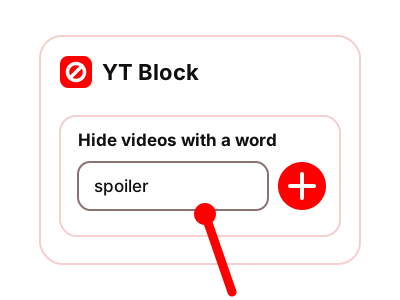
    Add a word or a whole phrase to your list in the extension.

    Drawing of the YT Block panel with spoiler typed into the Hide videos with a word field, a plus button and a red pointer on the field
    A word typed into the panel, next to the plus button.
  2. 2

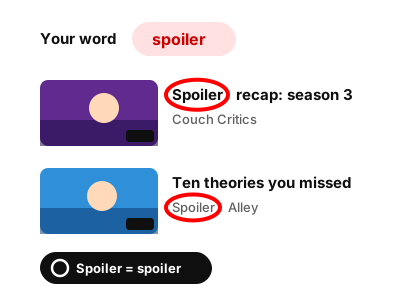
    The extension checks the title and the channel name of each video. Capital letters don't matter, so "Spoiler" and "spoiler" count as the same word.

    Drawing of the word spoiler above two video rows, with Spoiler ringed in red in one title and in one channel name, and a Spoiler = spoiler badge
    One word, ringed in a title and in a channel name (made-up videos).
  3. 3

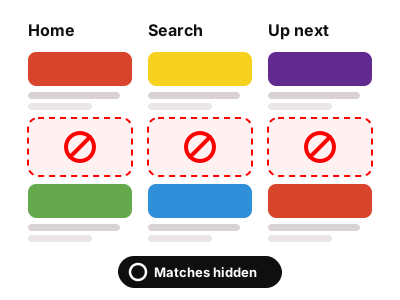
    Videos that match are hidden on Home, in search results and in Up next.

    Drawing of three columns named Home, Search and Up next, each with one video slot crossed out in red and a Matches hidden badge
    A matching video leaves Home, search and Up next.
  4. 4

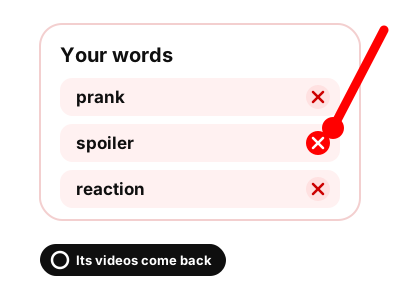
    Remove a word from the list and its videos come back.

    Drawing of a word list with prank, spoiler and reaction, a red pointer on the remove button next to spoiler and an Its videos come back badge
    A word list with a remove button next to each word (made-up words).

The keyword list is one of the rules in YT Block. If the trouble is one channel and not a topic, block the channel instead. AI videos are a special case of the same idea, with a ready-made set of words you can edit: see how to block AI videos.

Questions about blocking keywords

Does it check video descriptions and tags?

No. It checks only the title and the channel name. That keeps filtering fast and predictable, because you can tell from the title why a video was hidden.

Can I block a phrase, not just one word?

Yes. Add a phrase like "ending explained" and titles that contain it are hidden. You can try a phrase in the tester above.

How many words can I add?

The list is built to be long. Add every word, name and phrase you want to stop seeing.

Add a word once and stop seeing it

The extension checks titles and channel names on Home, in search and in Up next.

Coming to the Chrome Web Store

Coming to the Chrome Web Store

The extension is being finished and isn't in the store yet. Until then, the tools on this site work right here in your browser.